3.3 Use Linux Inside Sublime
Linux inside Sublime
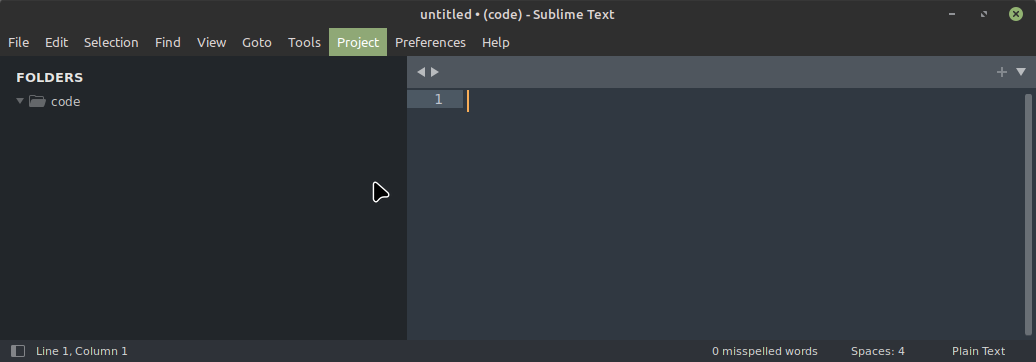
Open Sublime Text so you can start working on your Python program.
Save your project settings
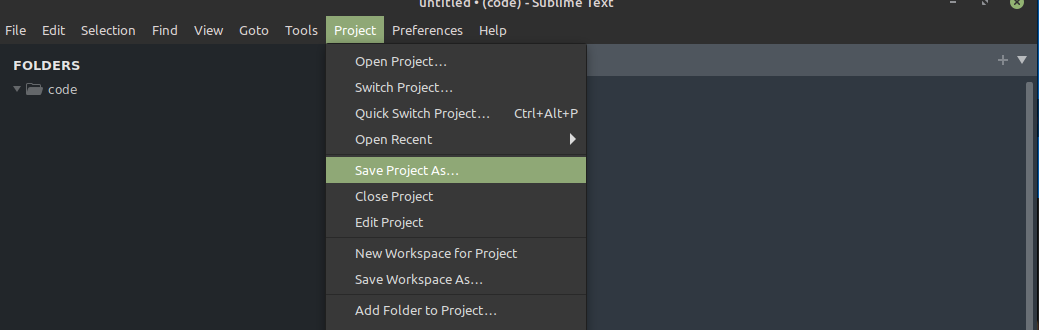
- In Sublime, go to the Project menu and choose “Save Project As…”
- Find your code folder that you created last week and change your project settings file from
untitled.sublime-projecttocode.sublime-project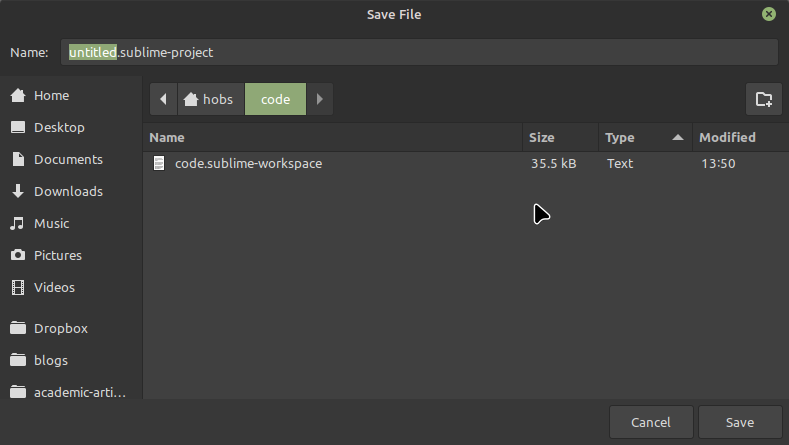
- Click [Save] button to create a
code.sublime-projectfile in your code folder
Install Terminus package in Sublime Text
Terminus is a plugin that allows you to interact with your computer using a Terminal (text interface). You need this to be able to program your computer and move your Python program files around easily.
- In Sublime hit [ctrl-shift-P] OR select “Command Pallette” in the “Tools” menu
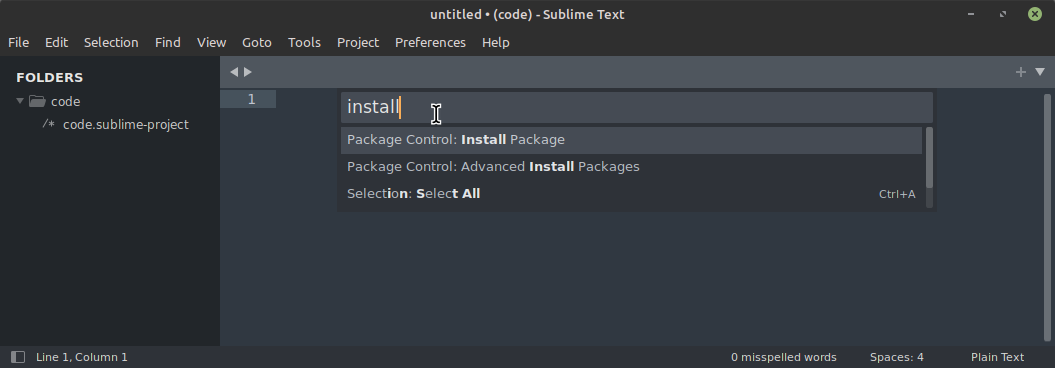
- type “install” and hit [ENTER] OR select “Package Control: Install Package”
- type or select “Terminus”
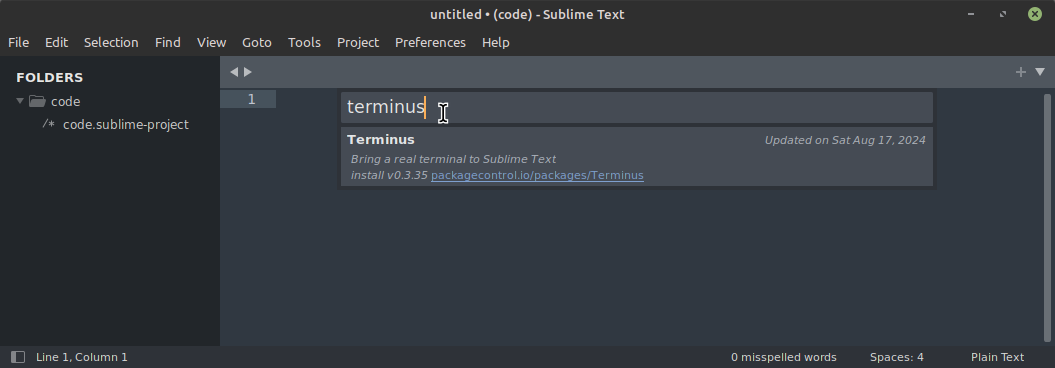
Windows ONLY
Skip the next two sections if you are on a Mac or Linux PC, because you already have Linux and Bash configured as your default shell.
Windows ONLY: Install Linux in Sublime
Microsoft’s instruction’s are here: https://learn.microsoft.com/en-us/windows/wsl/install but you should be able to install WSL from within Sublime Text:
- hit [ctrl-shift-P] OR select “Command Pallette” in the “Tools” menu (SCREENSHOT)
- type “terminusopen” and hit [ENTER] OR select “Terminus: Open Default Shell in Panel”
- click into the teminal panel at the bottom
- type “wsl —install” [ENTER]
- type “exit” [ENTER] to close the Terminus panel
Windows ONLY: Connect Terminus to Linux (WSL)
- hit [ctrl-shift-P] OR select “Command Palette” in the “Tools” menu (SCREENSHOT)
- type “terminus setting” and hit [ENTER] OR select “Preferences: Terminus Settings”
- click into the left-hand side of the Sublime window with a pair of settings files

- copy the section at the top of the “Terminus/Terminus.sublime-settings” tab on the left:
{
    // the default config, either a single config name or a platform
    // specific dict
    "default_config": {
        "linux": null,    // login shell
        "osx": null,      // login shell
        "windows": "Command Prompt"
},- Paste the copied text into the right-hand tab for the “User/Terminus.sublime-settings” file
- Add closing curly braces ”}” to the end of your “User/Terminus.sublime-settings” file
- Change
"windows": "Command Prompt"to"windows": "WSL Login Shell"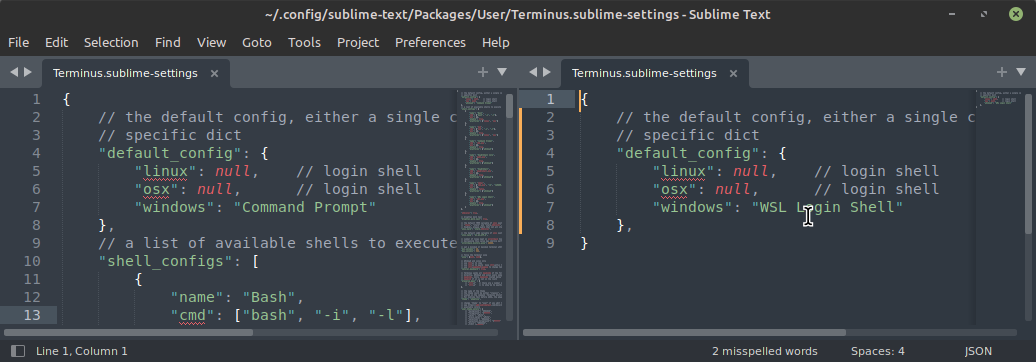
- Hit [ctrl-S] key to save your Terminus settings
- Click the [X] on the Sublime Text Window or type [ctrl-Q] to close you Terminus settings files
Bashy game within Sublime (Assignment)
- hit [ctrl-shift-P] OR select “Command Palette” in the “Tools” menu (SCREENSHOT)
- type “terminusopen” and hit [ENTER] OR select “Terminus: Open Default Shell in Panel”
- click into the terminal in the bottom of your screen
- type “pwd” [ENTER]
- type “ls” [ENTER]
- type “mkdir adventures” [ENTER]
- type “cd adventures” [ENTER]
- type “touch username.py” [ENTER]
- screenshot and upload your Sublime Text window so I can see that you successfully created a py-file within your
codefolder